
93 per cent of customer journeys cross both online and offline touchpoints before converting, a HubSpot statistic cited in Marketingscoop's guide to automating offline conversion tracking. HubSpot sells the CRM software that records those journeys, and the shape holds in most B2B pipelines. The click happens online, and the deal is signed weeks later somewhere Google Ads cannot see.
Offline conversion tracking closes that gap. An offline conversion is any conversion that happens away from your website, and the most valuable one in B2B is the signed deal. You send its details back to Google Ads, attached to the same click that started the journey, and the ad account stops guessing which clicks turn into customers.
This walkthrough builds the full loop with a Google Ads account, a Google Sheet and a Zapier account. No developer, no CRM API access and no terminal are needed. Web-side conversion tracking is a different job, covered in our guide to GA4 conversion tracking with Google Tag Manager. Cross-channel reporting lives in the unified ad attribution guide, and spend timing sits with Google Ads budget pacing.
Why Google Ads cannot see the deals you close
Your ad account already receives a signal on every form fill, and the signal works. It also teaches the algorithm that a form fill is the finish line. Zapier's guide to tracking offline conversions makes the point plainly. Most teams send Google one signal, a form fill, so the account gets very good at finding form fillers. Whether those people go on to buy is invisible to it, and Zapier sells the automation that runs this loop.
Follow one deal through a typical pipeline. Someone clicks an ad for a logistics platform and requests a demo. The conversation takes six weeks to reach a signature, at a value only the CRM knows. Google Ads saw a demo request, and it cannot tell that deal apart from the ones that died at proposal stage.
Offline conversion import closes that gap. When a deal is won, you send Google the click it came from and what the deal was worth, and the bidding algorithm starts learning the shape of your actual customers.
How offline conversion tracking works, in plain language
The mechanism rests on a click identifier. When someone clicks your ad, Google appends a long string called a gclid, short for Google Click ID, to your landing page URL. If your forms save it with the submission, it travels with the lead through your pipeline and ends up next to a closed deal.
Declaring the conversion is a matching exercise. The gclid identifies the original click, the conversion time says when the outcome happened, and the conversion name says what kind of outcome it was. Google checks those details against its records and books the conversion against the campaign that earned it. Google sells the ads that improve when those signals land, and its setup guide for click ID imports has the details.
Smart Bidding treats the imported conversion like any other signal, with one difference that matters. The signal can carry revenue, so send the deal value with the click and the algorithm starts hunting for clicks that look like the ones that closed. Google now points new adopters to enhanced conversions for leads; the click ID route here stays supported, and the FAQ covers when to upgrade.
Prerequisites: three accounts and one spreadsheet
The prerequisites are short, and none of them require an engineer.
- A Google Ads account with edit access. You need edit access to the conversions settings, and auto-tagging must be switched on; Google's setup guide lists it as a requirement.
- A Google Sheets spreadsheet with one row per closed deal. Kept current by whoever owns the pipeline.
- A Zapier account. The free tier covers two-step Zaps and 100 tasks a month. This loop adds a filter step as well, and Google's help page for the Zapier import notes that a paid Zapier account is required. Zapier sells those subscriptions.
- Forms that save the gclid with each submission. If your form tool supports hidden fields or URL parameters, this is a settings change. If it does not, it is a small job for a web developer.
- A quick look at your enhanced conversions setting. Google's newer path needs it, and the setting changes which fields an import expects. The FAQ covers when it is worth upgrading.
Step 1: Build the deal sheet that Zapier can read
Create the sheet and its columns
Open Google Sheets and build one header row. Keep one row per deal, added the day the deal closes, and let the sheet grow downward. The Zap reads new rows as they appear, so row order does the scheduling for you. Avoid editing old rows afterward; the import compares timestamps, and the table below shows what each column feeds.
What each row in the deal sheet needs
| Sheet column | Example value | Google Ads import field |
|---|---|---|
| gclid | EAIaIQobChMIlLfH1KqK9AI |
Google Click ID (required) |
| Conversion name | Closed deal | Conversion Name, matched on exact spelling |
| Close date | 2026-09-08 14:30:00+1000 |
Conversion Time |
| Deal value | 4800 | Conversion Value (optional) |
| Currency | AUD | Conversion Currency (optional) |
| Status | Won | Not imported; the Zap's filter reads it |
Keep the click ID exactly as captured
The gclid is case sensitive, so never retype that column or let Sheets reformat it; set it to plain text before the first value lands. The same goes for the conversion name. Google's import guide names a mismatched name as a common cause of failed uploads.
Step 2: Connect your deal source to Google Sheets
Route won deals into the sheet
If your team already works from a spreadsheet, this step is mostly discipline. Every closed deal becomes a row on closing day. If deals live in a CRM, let a small automation write the rows. Zapier's Google Ads and Google Sheets integration page lists ready-made templates, and the same Zap editor you use in Step 4 can watch a deal stage and add the row.
One row per deal, written when the deal closes
Timing is the entire point. A monthly export gives Google Ads a stale signal, and a row written on closing day gives it a fresh one. Google's guidelines for importing offline conversions draw a hard line at 90 days.
Step 3: Create the offline conversion in Google Ads
Set up the conversion action
In Google Ads, open Goals, click Summary under Conversions, and choose Create conversion action. Select Conversions offline, add a data source, and when Google asks for a connection source, pick Third party integration by Zapier. A data source is the pipe your deal data arrives through. Google also supports direct connections from Sheets and its API, and the file import guide covers those routes.
On the next screens, choose a category that fits a closed deal and name the action something your team will recognise, such as Closed deal.
- The name. The action's name is the string your deal data has to match, so write it down. A mismatch between the sheet and the account is a frequent cause of upload errors.
- Primary or secondary. Google warns that misconfiguring biddable and observation-only settings stops Smart Bidding from learning properly, so make this action primary if you want the algorithm optimising toward closed deals.
- Value. Leave the per-row value blank and Google applies the action's default; to make bidding chase revenue, pass the real deal value.
One timing note. Wait four to six hours after creating the action before the first upload; uploads sent during that warm-up can take two days to appear in reports.
Step 4: Point Zapier at the upload
Build the Zap
In Zapier, create a Zap with Google Sheets as the trigger app and the event New Spreadsheet Row. Point it at the Step 1 spreadsheet. Zapier pulls a sample row to build against, and the Step 2 integration page has a ready-made version.
Filter out the rows Google cannot use
Add a filter step between the trigger and the action, which Zapier calls Filter by Zapier. Zapier's setup article for the action recommends that the status column say Won and the click ID field hold a value. Creating an offline conversion requires a gclid, so a row without one never reaches Google.
Now add the action. Choose Google Ads, and select the Send Offline Conversion event. Map each field to its source.
- Conversion user identifier source. Choose Google Click ID.
- GCLID. Map the gclid column from the sheet.
- Conversion action. Select the action from Step 3.
- Timestamp. Map the close date. Zapier can stamp the moment the Zap runs if a row carries no date.
- Value and currency. Both optional, and both worth mapping for revenue-weighted bidding.
If the conversion can happen within 24 hours of the click, Zapier suggests a Delay For step ahead of the action. Publish the Zap once the test passes.
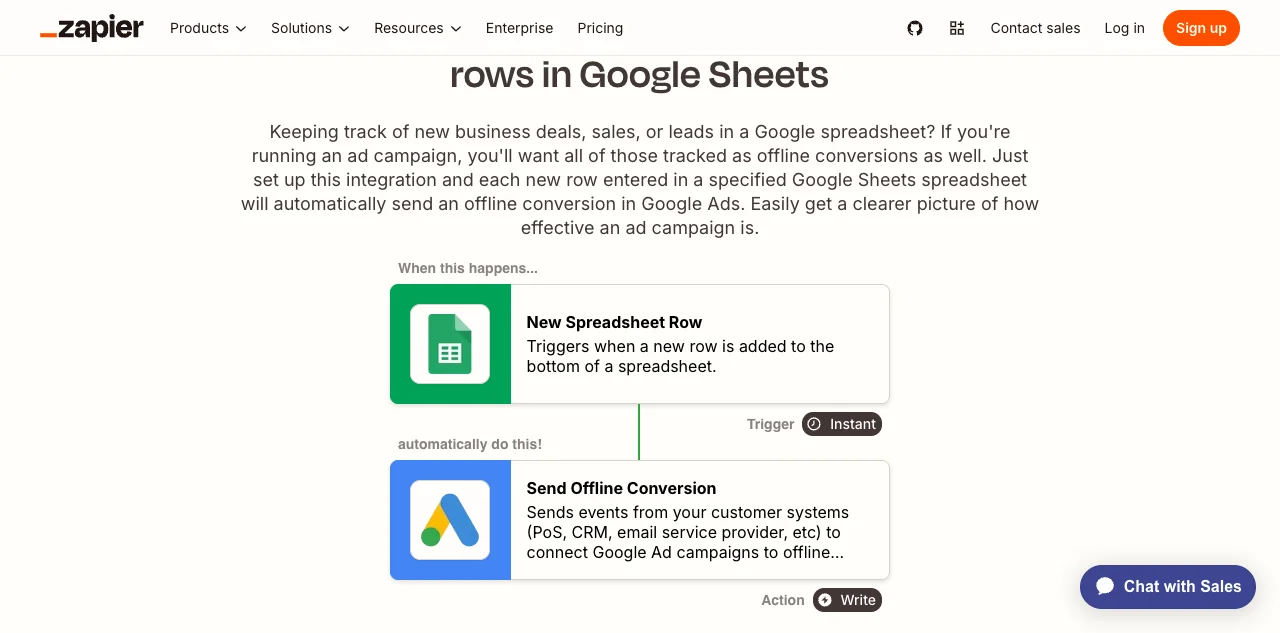
Zapier's template page for sending Google Ads offline conversions from new Google Sheets rows, captured on 10 September 2026.
Step 5: Verify the import and read the reports
Check the numbers, then trust them
Give the first upload a few hours. Imported conversion statistics take about 3 hours to appear in your account. Then open the uploads report inside Google Ads. Under Goals, then Conversions, it shows success or failure messages and lets you download an error report; the diagnostics on the conversion action flag matching problems.
Where to check an import landed
To sanity-check the numbers, use the All conv. (by conv. time) column in reporting. It counts conversions by the date recorded in your upload, which is the date the deal closed, so it reconciles against your sales records. Then let bidding learn. The account needs a stretch of clean closed-deal data before its preferences shift.
What to do when the numbers do not match
When the deal count in your sheet and the conversion count in Google Ads disagree, the cause is almost always on this list.
- Check the click ID first. The gclid is case sensitive, it has to survive intact into the upload, and rows without one are skipped by design. CustomerLabs, which sells click-ID tracking software, estimates up to 30 to 40 per cent of web leads arrive without a usable identifier. Those clicks cannot be matched to a deal.
- Check the conversion name. Google matches on spelling and capitalisation, so keep the string identical in every row.
- Check the clock. Conversions uploaded within a day of the click may not be recordable yet, so upload an extra day's worth of data with each import. An upload sent during the warm-up can take two days to appear.
- Check the time zone. Conversion Time values need a zone attached, and Google lists a missing or wrongly formatted zone as a frequent cause of upload errors. The column should read like 2026-09-08 14:30:00+1000.
- Check for duplicates. Google removes them automatically, so a row that looks missing may have been a repeat, identified from the click ID, conversion name, date and time together.
Fix those and the loop stays boring, which is the goal. This is the kind of system we build at Supernodes. The pilot runs two weeks and covers the audit, the connection and the measurement; if your reporting gap looks like this post, speak with us.
Frequently asked questions
Do I need a developer for any of this?
The build itself needs no developer. The sheet, the Zap and the Google Ads setup are clicks. The one piece that touches your website is capturing the gclid when a form is submitted, and Google's setup guide assumes someone can edit your pages. If your form tool supports hidden fields or URL parameters, that is a settings change; if not, it is a small job for a web developer.
What does this cost?
Google Ads does not charge extra to receive conversion data. Zapier's free plan covers two-step Zaps and 100 tasks a month, and this loop adds a filter step on top, so it runs on a paid plan; Google's help page for the Zapier import confirms a paid account is required. Zapier's pricing page lists Professional from USD 19.99 a month, and the tiers step up from there; Zapier sells those subscriptions.
How long before the data shows up?
Imported conversions typically take about 3 hours to appear, according to Google's import guidelines. Wait 4 to 6 hours after creating the conversion action before the first upload; uploads sent during that window can take two days to surface.
Why are some closed deals missing from Google Ads?
Usually the click ID. The filter you built skips rows without a gclid on purpose, and browser privacy features strip that identifier from a share of web leads. CustomerLabs, which sells click-ID tracking software, puts the loss at up to 30 to 40 per cent. Deals older than 90 days will not import either.
Should we use enhanced conversions for leads instead?
Google now recommends it for new adopters, and its overview of offline conversion imports explains why. Enhanced conversions for leads adds hashed email or phone matching on top of the click ID, which recovers conversions where the gclid is missing. Google publishes a migration guide for teams already running imports.
Our deals live in a CRM. Does this still work?
Yes, the sheet just becomes a staging area. Add a second automation or export that writes won deals into Google Sheets when the stage changes, and let the main Zap pick the row up from there. Google Ads only needs the click ID, the conversion time and a matching action name.