
The videos a business already has, the webinars, the product demos, the founder talks, can be found through YouTube search, and getting them there does not need a video team. When the title, the description and the captions match what customers type, YouTube's systems have something to work with. That is what YouTube SEO for business comes down to. The work is small text edits, made an afternoon at a time.
This guide stays with the recordings already sitting on a channel: uploads with default titles and empty descriptions. Paid advertising is a different job, covered in our guide to YouTube ads for small business, and turning one recording into many formats belongs with the video repurposing workflow. The routine below covers organic search, and it needs a browser, a channel login and one free spreadsheet.
Why YouTube SEO for business starts with the videos you already have
YouTube's own numbers make the case. Its press page states that more than 20 million videos are uploaded every day, and that Nielsen ranked YouTube first for streaming watch time in the United States as of January 2026. Google sells the advertising that sits against all of that video.
Matching is the whole game. A recording whose text says nothing about its topic gets filed where nobody clicks. YouTube's guide to how search works puts the upload rate at over 500 hours every minute. With competition that thick, the text is the cheapest lever a team has.
Most business libraries were never built for search. A team records a supplier briefing or a product walkthrough, uploads it, and moves on. The title says "Webinar recording", the description says "Watch the full session", and neither line tells a stranger what problem the video solves. The gap is made of words.
Videos that do get found share a few habits. Their titles carry the phrase a buyer would type, their descriptions summarise the content in plain language, and their captions give the platform a full transcript to read. Related videos link to each other, so finishing one leads into the next.
How YouTube search decides which videos to show
YouTube describes its search in three parts: relevance, engagement and quality. Relevance is how well the title, tags, description and the video's own content match what someone typed. Engagement is what viewers do once they arrive, and watch time sits at its centre. Quality covers the signals the platform has built up about a channel over time.
Two numbers matter through everything below. An impression is a thumbnail shown to somebody; the click-through rate is the share of those impressions that turn into views. YouTube's impressions and click-through rate FAQ says half of all channels and videos see a rate between 2 and 10 percent, that it varies by content type and audience, and that YouTube ranks each video against everything else a viewer could watch across the platform.
The second number is watch time, the minutes people spend on the video. Backlinko's guide to ranking videos, published by a business that sells SEO training, puts average watch time at the centre of the system: the longer viewers stay, the higher a video tends to place. YouTube's help pages recommend reading impressions and clicks together, because a video shown more widely can see its click-through rate dip as it reaches less familiar viewers. A softer rate often signals a wider audience.
One more thing shapes everything below. Results are personalised, so two people searching the same words can see different videos, and there is no fixed position to claim. The work is making the video legible to the system, then making it worth staying for.
The set-up: channel access and one free spreadsheet
The whole routine runs on a browser, a YouTube channel login and one free Google Sheet. No editing software, no subscriptions. Check two things before the first step.
- A login that can edit the channel's videos. If the channel belongs to someone else, the owner can grant editing access under Settings, then Permissions, inside YouTube Studio. Ask for the Editor role; nobody needs to hand over a password.
- A free Google Sheet with three columns: the search phrase, what the searcher is after, and the video that answers it. It becomes the working file for everything below.
That is the whole list of prerequisites. Every step below happens in YouTube Studio, the browser dashboard where a channel's videos get edited, described and measured.
Step 1: Find the questions people already search
Open the spreadsheet first, before touching any video. The phrases worth targeting are visible in two places, and both are free.
Read the suggestion list in the search bar
Type the first few words of a topic into YouTube's search box and stop before pressing enter. The suggestion list draws on what people actually type, so the session doubles as keyword research. "Supplier reminders not working" and "supplier reminders setup" describe two different videos. Write down every suggestion a recording could answer.
Check the search terms inside Studio
Studio's analytics include the search terms viewers used to find your videos, and the Research tab shows what viewers across YouTube search for. A question with no video behind it yet is a note for a future recording.
The sheet turns suggestions into a plan. For a software team with a demo library, a first pass might look like this, worked as an illustration:
| Search phrase | What the searcher wants | Which video answers it |
|---|---|---|
| invoice matching demo | A fast look at the product in action | The 6-minute clip from the March demo recording |
| how to set up invoice reminders | Instructions they can follow today | The reminders segment of the onboarding webinar |
| spreadsheet or software for invoices | A comparison before they decide | The founder talk from February, minutes 12 to 18 |
Keep the sheet to a screenful. Ten phrases is plenty for a first pass, and any row without a video behind it names a gap to fill later.
Step 2: Rewrite the title around the search phrase
What the title has to do
The title is the line under the thumbnail in search, one of the two things a searcher sees before deciding. YouTube's tips for video descriptions suggest picking one or two main words for a video and featuring them in both the title and the description, and its tags guidance adds that the title, thumbnail and description carry more weight for discovery than the tags field. Write the phrase from the sheet into the title the way a person would say it.
The edit itself, in Studio
Open Studio and go to Content. Point at the video, click the pencil icon, and choose Details. The Title box is the first field on the screen. "Webinar recording, March" becomes something like "How to set up invoice reminders: full walkthrough", which carries the phrase and the promise. Save, and the change is live; the description sits one field below, ready for the next step.
Step 3: Write the description like a summary for a busy searcher
The first two lines carry the weight
YouTube's description guidance says a description tells the algorithm and viewers what a video is about, and recommends featuring the video's main words early. The first lines also sit under the title and thumbnail in search, so treat them as the summary of the video: what it covers, who it is for, and what the viewer will be able to do afterwards.
What goes under the summary
Below the summary comes the practical detail a viewer would otherwise write in to ask for: timestamps for each section, the file the video mentions, and a link to the matching page on the website. Timestamps in the form 00:00, 02:30 can turn into chapter markers in the player, giving viewers a table of contents and search more structured text to read. Keep the whole thing written for people.
What the tags field is for
Tags play a smaller role than most advice suggests. YouTube's own guidance on tags warns that stuffing a description with them breaks its spam policies, and points discovery at the title, thumbnail and description.
Step 4: Turn captions into text search engines can read
Why captions earn their keep
A caption is the written version of what is said in the video. Two things come out of having one. Search systems can read it, so the video offers a full page of text to match against, well beyond its title. And viewers watching with the sound off can still follow along; Kapwing's guide to adding subtitles, from a company that sells an editing tool, notes that more than half of Americans use subtitles at least some of the time.
Auto captions versus an edited file
YouTube can generate captions from the audio automatically, and the first pass is usually rough in places. Subtitling.net, a captioning service, points out that raw transcripts miss the line breaks and pacing that make captions comfortable to follow. The reliable route is a corrected file, an SRT (a plain text file with timestamps), uploaded as a caption track viewers can toggle. Once an accurate track exists, fixing it takes minutes.
Where the work happens
In Studio, open the video and choose Subtitles from the left menu. Pick the language, then use Add to attach the file or generate the automatic track and correct it line by line. A transcript that already exists for accessibility purposes can be converted into the track with minimal editing, which makes this step a quick win.
Step 5: Connect your videos with playlists
Why one video should lead to another
A playlist is a named group of videos that plays in order, and it does quiet work for discovery. Sprout Social's YouTube SEO guide, from a company selling social media management software, describes topic playlists as a way to keep viewers moving into the next video, which feeds watch time. YouTube's own playlist help notes videos can be added from search results.
Building the first two
Name each playlist after the question it answers, such as "Supplier reminders, start to finish". Add five to ten videos, and put the strongest explainer first, because the opening video sets what the playlist is about. In Studio, open Playlists, choose New playlist, and fill in the title, description and order.
Two playlists make a sensible start, one for the common how-to questions and one for onboarding; further groupings suggest themselves later.
Step 6: Read the numbers that choose your next video
The numbers worth watching
Impressions, click-through rate and watch time tell the story in order. Impressions say how often the thumbnail got shown, click-through rate says how often it earned a click, and watch time says whether the video kept its promise. Read impressions and click-through together, as YouTube's guidance suggests, because a wider audience can soften the click-through rate. The traffic sources view then shows where views came from: search, suggested videos or external sites.
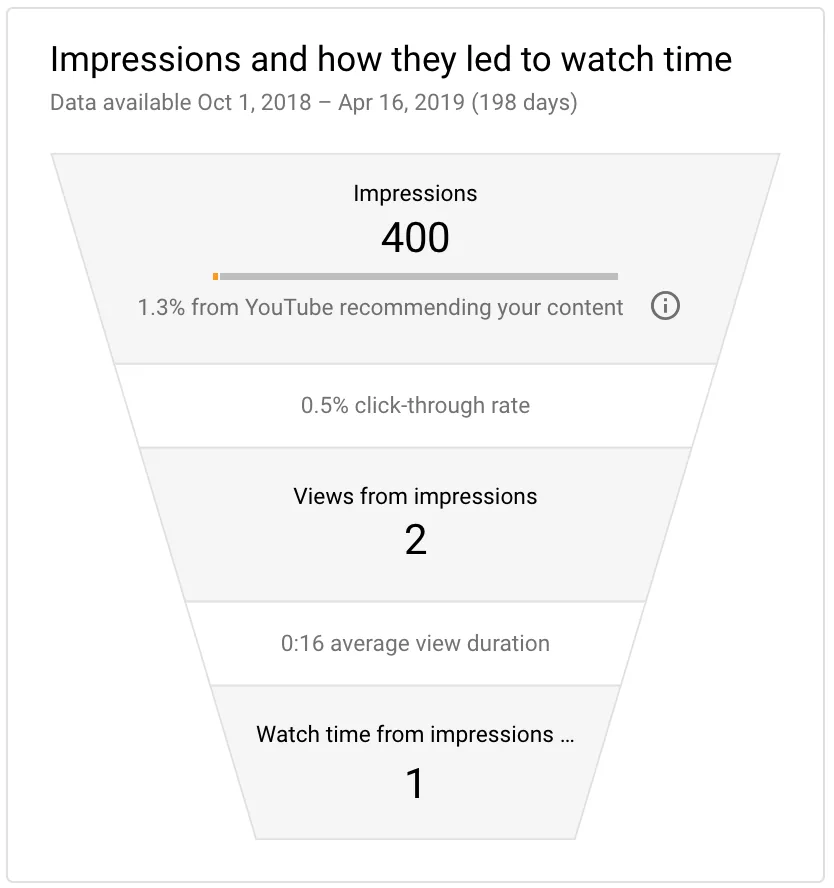
The impressions and watch-time panel in YouTube Studio, from YouTube's help article on decoding impressions and click-through rate, captured on 21 September 2026.
Choosing the next edit
High impressions with low clicks is the clearest signal that a title or thumbnail needs another pass. vidIQ's guide to writing titles, from a company that sells YouTube growth tooling, frames that pattern as the moment to revisit, and notes that YouTube weighs a new title by watch time share, with clicks only part of the picture. The reverse pattern, decent clicks on few impressions, usually means the phrase is narrow.
Quiet videos are the queue worth working through. Open the sheet, take the phrase that matches one of them, and run Step 2 again. It is the same discipline as a content refresh routine for blog posts, applied to a video library.
Frequently asked questions
Does this routine work on videos we published years ago?
Yes. Titles, descriptions, captions and playlists can all be edited on older uploads, and YouTube reassesses videos continuously, so an old recording can pick up traffic it never had. Quiet videos are often the best place to start, because the fix is a text edit with no camera involved.
How long before a video ranks?
There is no fixed timeline and nobody can promise a position, because results are personalised for every viewer. Watch the sequence instead: impressions first, then clicks, then watch time, and give a change time to be reassessed.
Do tags and hashtags still matter?
A little. YouTube's own tags guidance says the title, thumbnail and description carry more weight for discovery, and warns that loading a description with tags breaks its spam policies. Keep the tags field to a handful of relevant phrases and put the effort into the title and description.
Do we need vidIQ, TubeBuddy or another paid tool?
No. The routine runs on YouTube Studio and a spreadsheet. vidIQ and TubeBuddy sell subscriptions and offer useful extras such as scorecards and idea research, so treat them as optional add-ons.
Should we delete old videos and re-upload them with better titles?
Edit in place. A new title on an existing video keeps its comments and its history, while a re-upload starts from zero and breaks every link pointing at the old version. Delete a video only when the content itself is wrong.